◎AI
Luminaire Edit Studio
Protected editing and exact-size delivery for ComfyUI
Luminaire Edit Studio is a GPL-3.0 ComfyUI node pack and workflow for Qwen Image 2.1. It combines image editing, masked edits, outpainting, transparent assets, protected pixels, AI upscaling and resumable batches in one canvas.
A ComfyUI workspace for Qwen Image 2.1 that adds pixel-exact protected regions, six-step drafts, exact-size delivery and resumable folder batches to eight editing and finishing tasks.
Date
October 2026
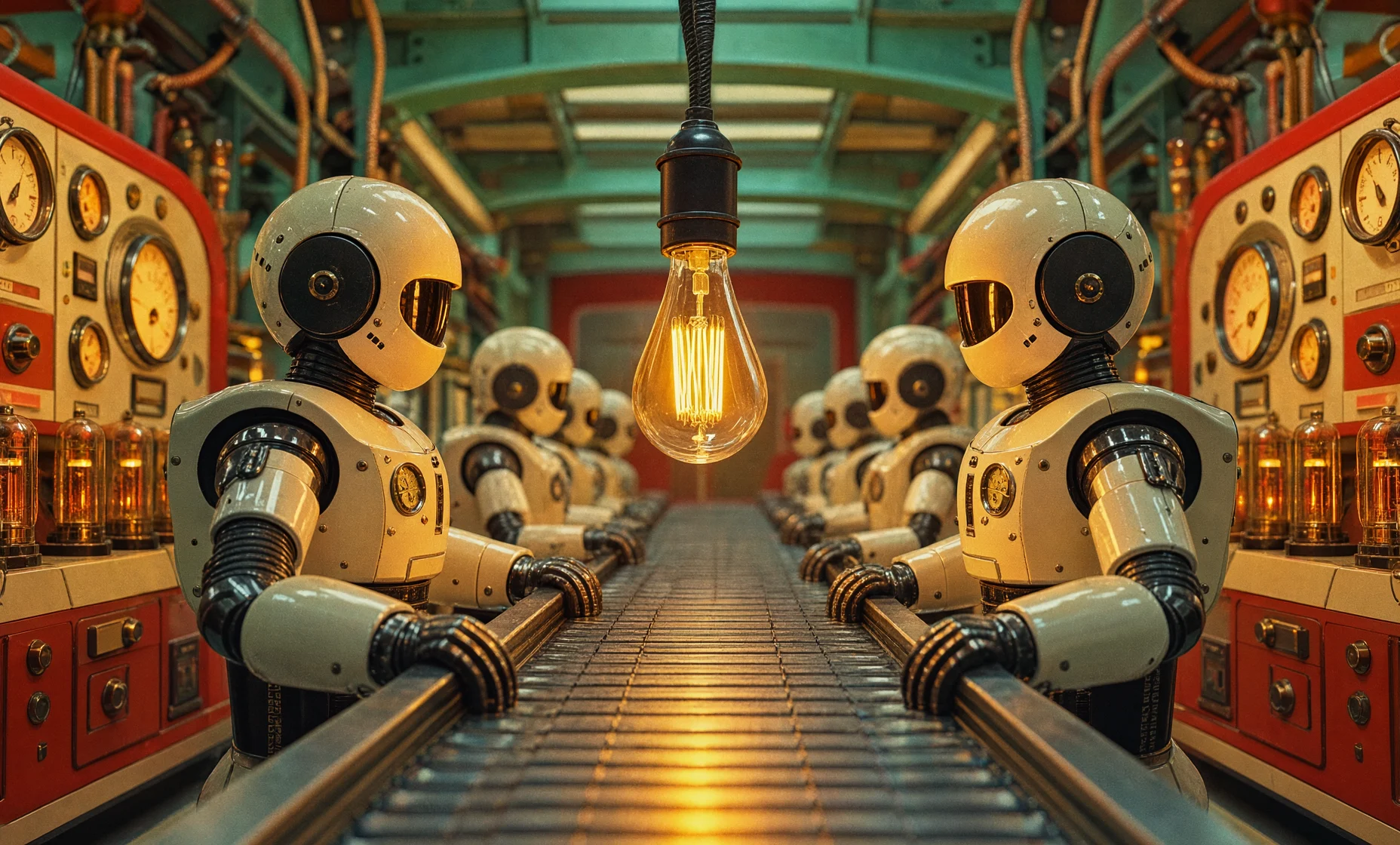
Luminaire Edit Studio is a ComfyUI workspace for editing images with Qwen Image 2.1 and delivering them at an exact size. One workflow covers eight tasks: edit, masked edit, outpainting, folder batch, transparent assets, text to image, and single-image and folder upscaling.
The sampler is only part of the job. A set of companion nodes handles the rest: protecting pixels you don't want changed, previewing masks and layout before a render, finishing the result, and saving the raw and final images separately.
It ships as a ComfyUI custom node pack plus a workflow pack, released as v1.4.0 under GPL-3.0-only. Models and third-party nodes are installed separately.
v1.4.0
Release
Qwen Image 2.1
Model Pack
6 / 40
Draft / Quality Steps
What It Does
Edit - change an image from a written prompt, the source goes first, followed by up to eight additional references
Masked Edit - paint or supply a mask, choose whether white edits or white protects, and stitch the edited crop back into the source
Outpaint - extend the canvas, give the model source context, then stitch the result
Folder Batch - run the same instruction and settings across a folder of images
Transparent Assets - RGBA-aware editing, great for logos
Text to Image - generate from a prompt at explicit dimensions, with an optional prompt enhancer
Upscale Single and Upscale Folder - finishing only: size, frame, upscale and add grain to existing images
Three optional branches can be switched on per task: a prompt enhancer, structural guidance for poses, and RGB alignment.
Which Model does It Support?
The first release supports Qwen Image 2.1 and runs natively in ComfyUI.
Quality — qwen_image_2.1_int8_convrot.safetensors at 40 steps, CFG 1, Euler with the simple scheduler, and a working area of about 2 MP
Text encoder — qwen3vl_8b_w4a8.safetensors
VAE — texture_fix_vae_for_qwen_image_2.1_bf16.safetensors
Draft (optional) — Viggle's Qwen-Image-2.1-viggle-turbo v0.2.1 six-step merged INT8 checkpoint, a separate model rather than a step-count setting
Optional features — Qwen 3.5 9B prompt-enhancer checkpoints for edit and text to image, the Fun ControlNet Union patch, any LoRAs, and any upscale model ComfyUI can load for AI delivery
Quality-of-Life Features
These are the pieces that exist to save a render or prevent a mistake, beyond the Qwen sampler itself.
Protect the pixels you don't want touched
Paint white over a region in the source loader's mask editor and turn protection on. After Qwen renders, the original pixels are restored through that mask. Grow expands the protected core, feather blends outward without softening the fully protected center, and an overlay shows exactly what's covered.
In Masked Edit you choose whether white means edit or protect. The crop sent to the model and the restoration mask come from that one choice, so they can't disagree. Restoration is exact at that stage. A later resize, alpha flatten or grain pass can still change those pixels, and the usage guide says which settings keep delivery exact when that matters.
See the layout before spending a render
A Preview mask/layout only button queues just the preview dependencies: the mask overlay and the delivery layout. It skips Qwen sampling, AI upscaling, grain and the final saves, so you can check polarity, crop and padding without paying for a render. Layout previews are capped at 768 pixels.
Draft fast, then promote to Quality
Draft mode swaps in Viggle's six-step checkpoint at a smaller working area (0.25 to 2 MP, 1 MP by default) instead of 40 steps. Three buttons sit on the render-mode node: Queue draft, Explore 4 drafts (four jobs with incrementing seeds), and Queue quality with the current inputs and seed.
To promote a draft you like, restore its PNG workflow and queue Quality. The composition can change, because the base model renders the image again. Draft accepts at most three total images and bypasses Quality LoRAs and ControlNet.
An overlapping Quality and Draft transformer load stalled during local validation, so switching modes now unloads only the preceding transformer family. CLIP, VAE and upscaler residency stay under ComfyUI's management.
Exact-size delivery
One delivery node decides the final output: keep the input size, scale it, or pick a custom size or an HD, UHD, square 1080, 4:5 or 9:16 preset. Choose centered crop, pad or stretch; Lanczos, bicubic or an AI upscale model; preserve or flatten alpha with a black, white or transparent background; and seeded RGB grain.
RGBA images are resampled premultiplied to avoid dark fringes at transparent edges. An AI upscaler runs at its native scale and the result is then resized to the exact requested dimensions, and one shared upscaler is cached across nodes and folder items. Deliveries are capped at 80 megapixels. Outputs are 8-bit PNG files with the workflow and delivery recipe in their metadata, saved under project and version folders.
Raw and final results, saved separately
Every task saves the raw model output and the finished delivery as separate PNGs. To change the size, framing, alpha or grain later, load the raw PNG into Upscale Single or Upscale Folder and finish it again without regenerating.
One set of controls for every task
Model selection, seed, working area, the reference bank and the delivery settings are published once on a Studio Bus built from KJNodes Set and Get nodes, then read by each task's subgraph. Switching tasks keeps each task's optional features in their own state.
Resumable folder batches
A standard-library Python runner (3.10 or newer) submits a folder to ComfyUI's API using one of 49 current API templates, with 46 earlier templates preserved. It writes a durable manifest, so a run can resume with identical settings or retry failures using their recorded seeds.
It supports variants, fixed, stable-per-source and random-recorded seed modes, per-image sidecar prompts, separate mask folders, repeated reference images, and a dry run that touches neither the network nor the manifest. A remote server takes its authentication header from an environment variable. The runner never installs software, starts ComfyUI, modifies source images or cancels server-side jobs.
Dry-run a folder batch (PowerShell)
1
python tools/luminaire_batch.py `2
--template workflow_packs/qwen21/api/v1_3/edit_api.json `3
--mapping workflow_packs/qwen21/api/v1_3/edit_mapping.json `4
--input-dir "D:\images" `5
--state-dir ".local/batches/example" `6
--prompt "Make the background blue. Preserve the subject." `7
--dry-run
Choose the attention backend
The sampler exposes Auto, PyTorch, Comfy Kitchen INT8 and SageAttention. Auto keeps the host's selection. In a three-seed comparison on the test machine, SageAttention's median sampler time was about 2.6% lower than Comfy Kitchen INT8 (54.20 s against 55.66 s) with effectively unchanged VRAM. That gap is too small to call a general winner, and the project's own notes say so.
How It's Put Together
Model-independent tools and model-specific behavior are kept apart. The shared module holds protection, mask polarity, delivery, the upscaler cache and attention selection. The Qwen engine owns the Quality and Draft policy, checkpoint selection, the six-step schedule and CLIP routing. A pack manifest declares each pack's tasks, capabilities and limits, and the canvas is built from native ComfyUI subgraphs. Ten companion nodes are registered: seven shared and three Qwen-specific. Existing QwenStudio node IDs and filenames are kept so saved workflows and API clients survive the rename.
Repository layout
1
luminaire-edit-studio/2
├── __init__.py, nodes.py ComfyUI registration; stable QwenStudio node IDs3
├── luminaire/4
│ ├── shared.py protection, masks, delivery, upscaler cache, attention5
│ └── engines/qwen21.py Quality/Draft sampler, six-step schedule, CLIP routing6
├── web/studio.js draft, quality and preview buttons7
├── workflow_packs/qwen21/ canvas, task manifest, API templates, enhancer text, pack.json8
├── tools/luminaire_batch.py resumable batch runner9
├── INSTALL_STUDIO.ps1 Windows Portable installer10
└── docs/ usage, dependencies, performance, support, licenses
A Real Run
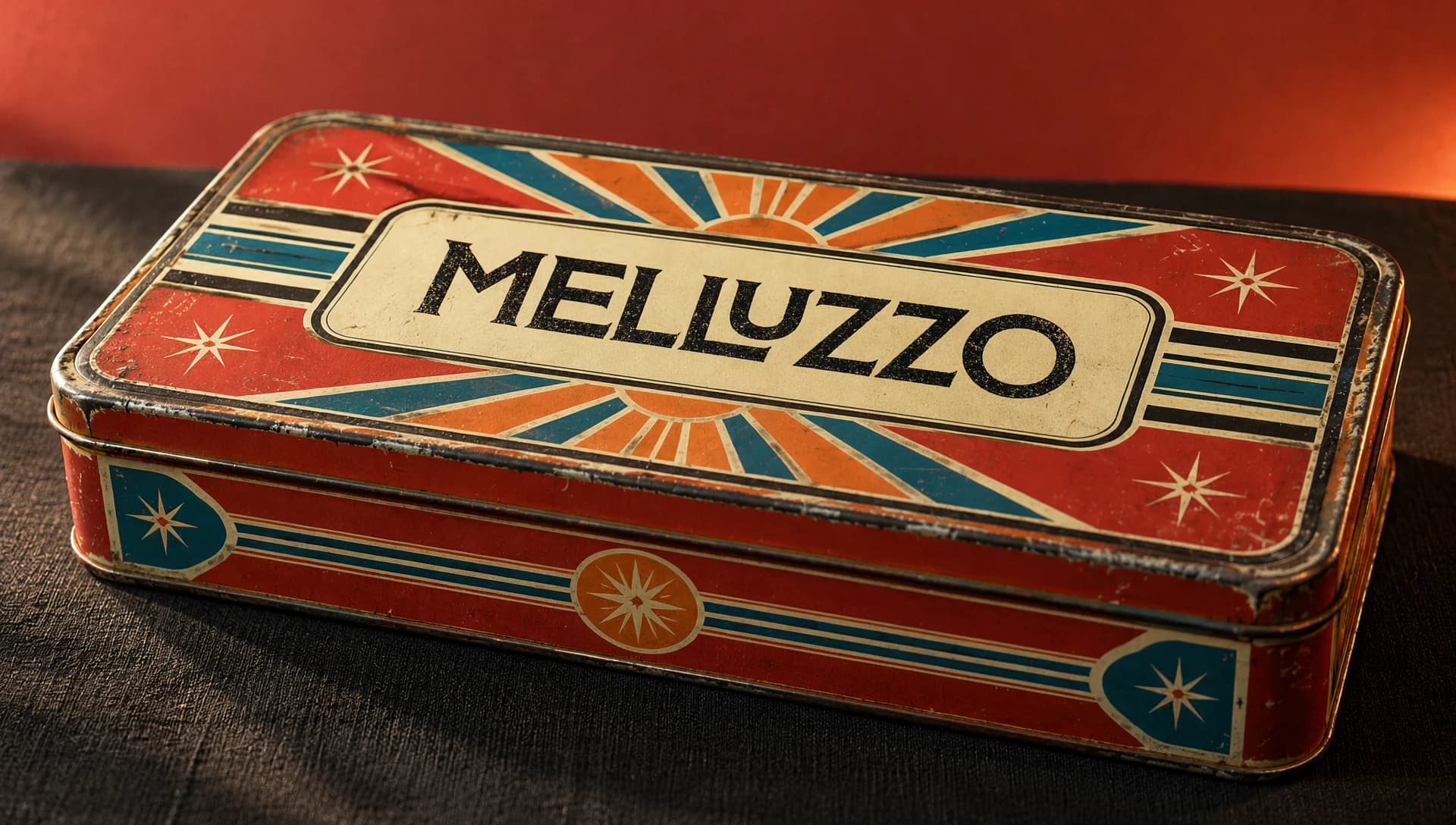
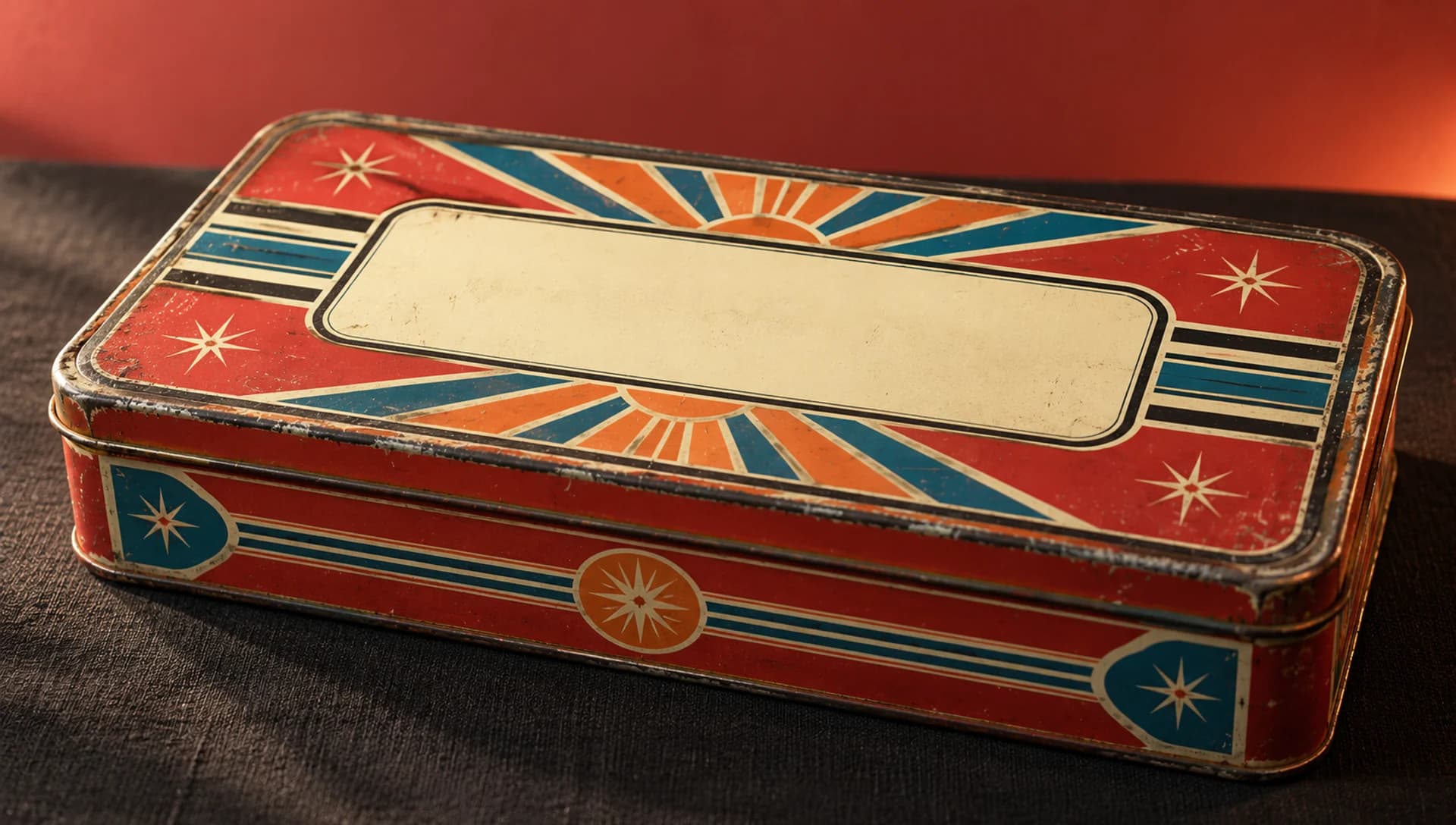
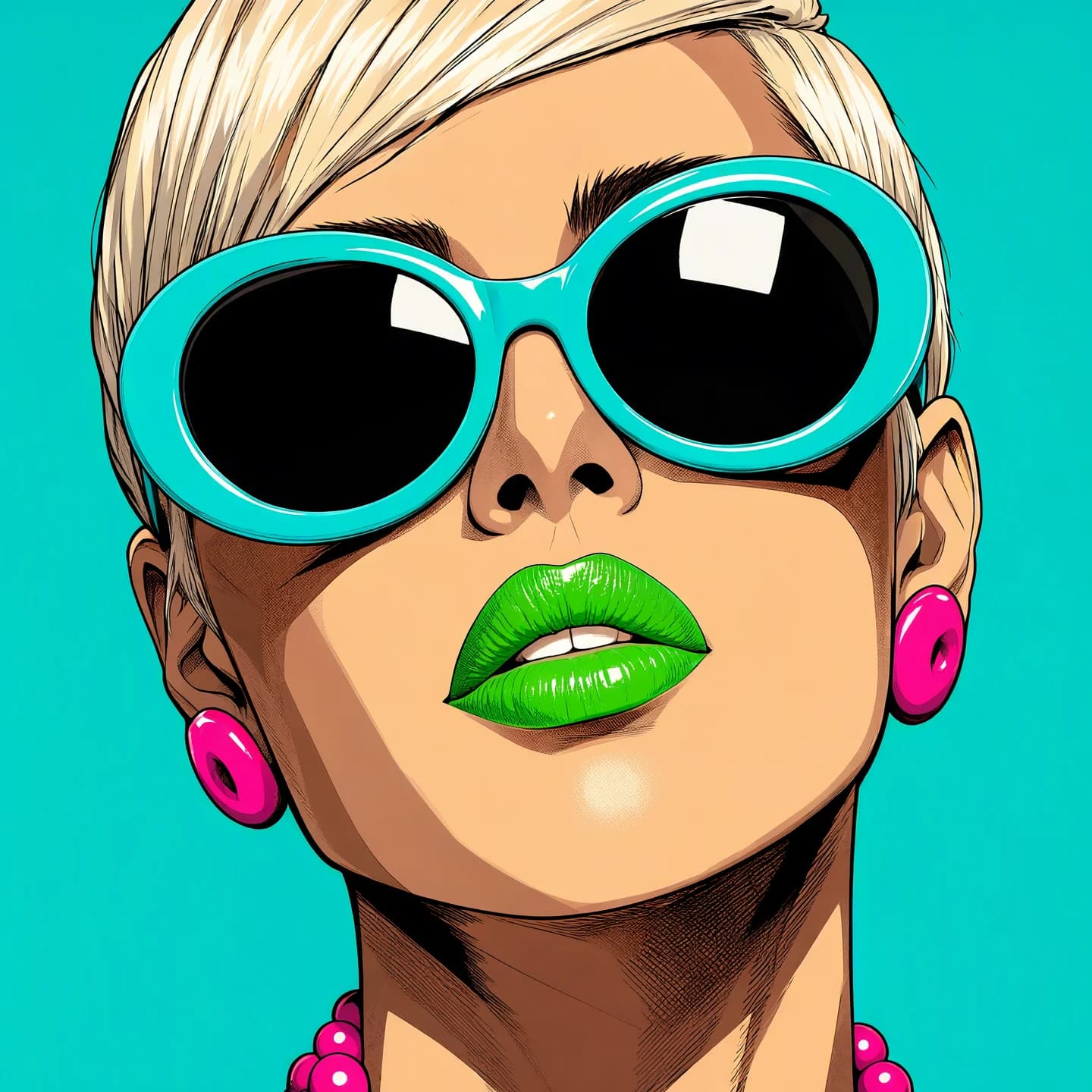
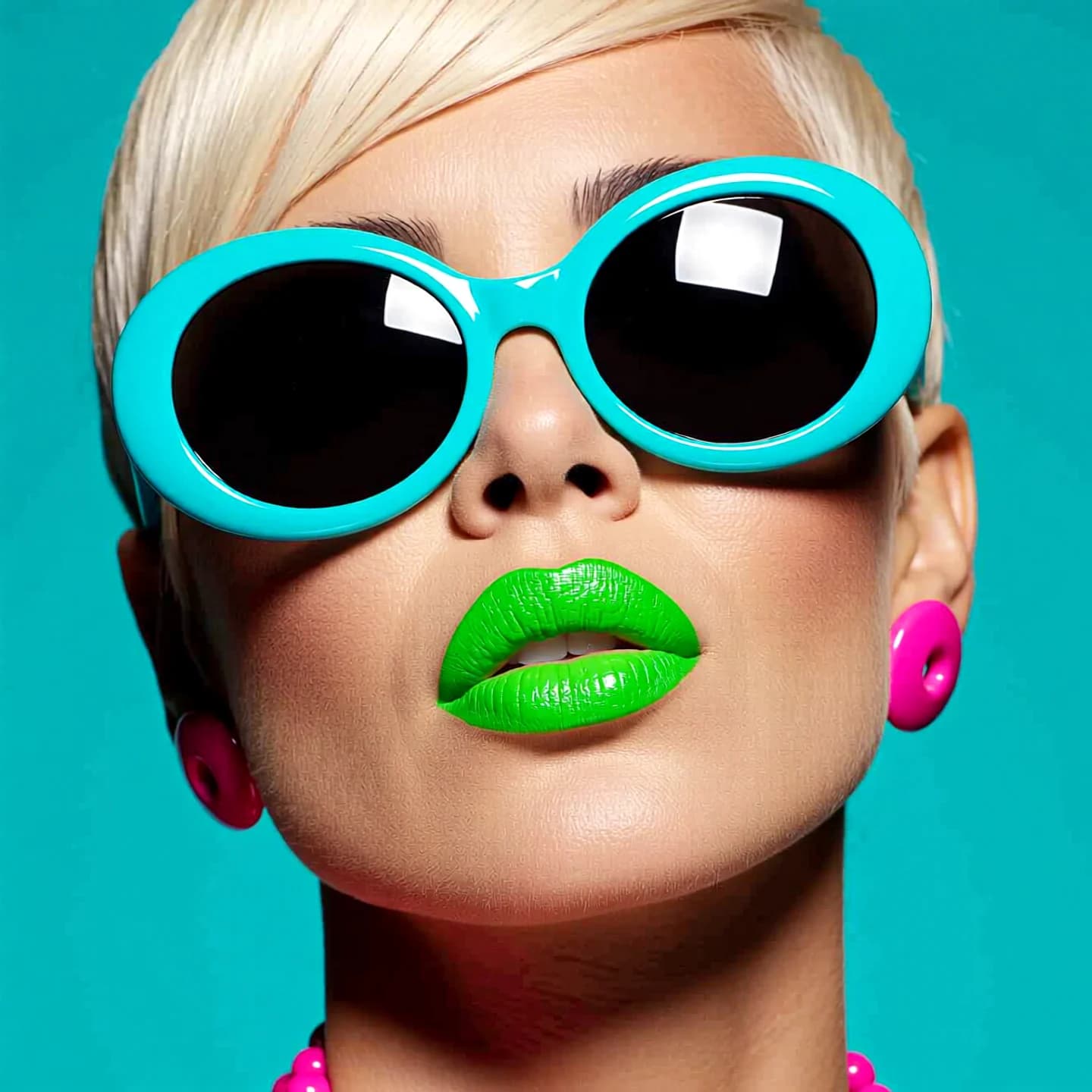
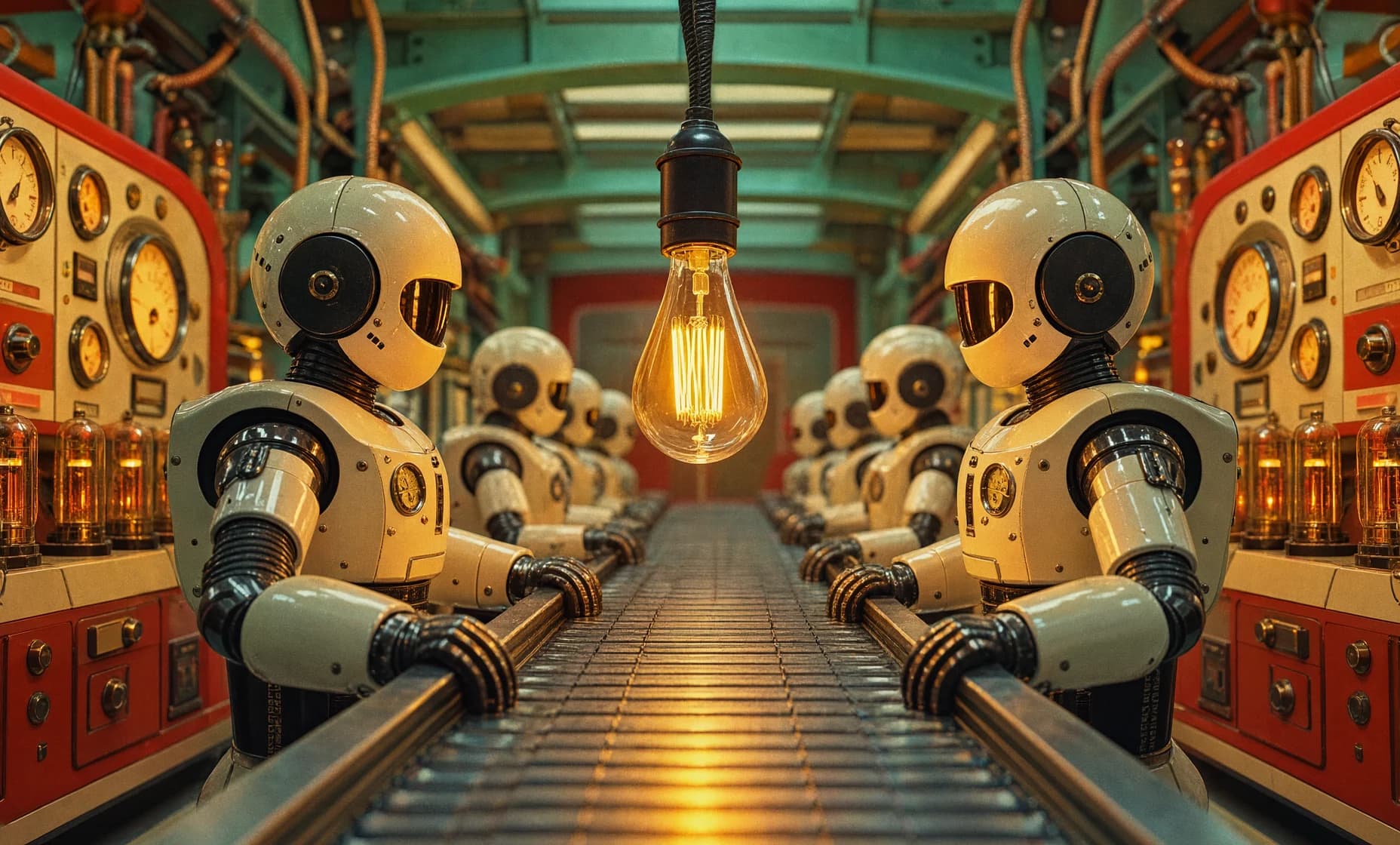
I ran five edits through the released API workflow pack: a surreal background swap for a seated portrait, a logo transfer onto a vintage tin using a second image as reference, a manga restyle, a retro-futurist redesign of a robot factory, and a wardrobe and hairstyle change.
Every run used Quality mode, a 2 MP working area, 40 steps and Comfy Kitchen INT8 attention.
The first run took about two minutes, and the GPU samples show most of the first minute going to model loading. The rest took between 57 and 77 seconds each, the slowest being the tin with its extra reference image.
Sampled VRAM use peaked at 19.5 to 20 GiB on a 24 GB card.
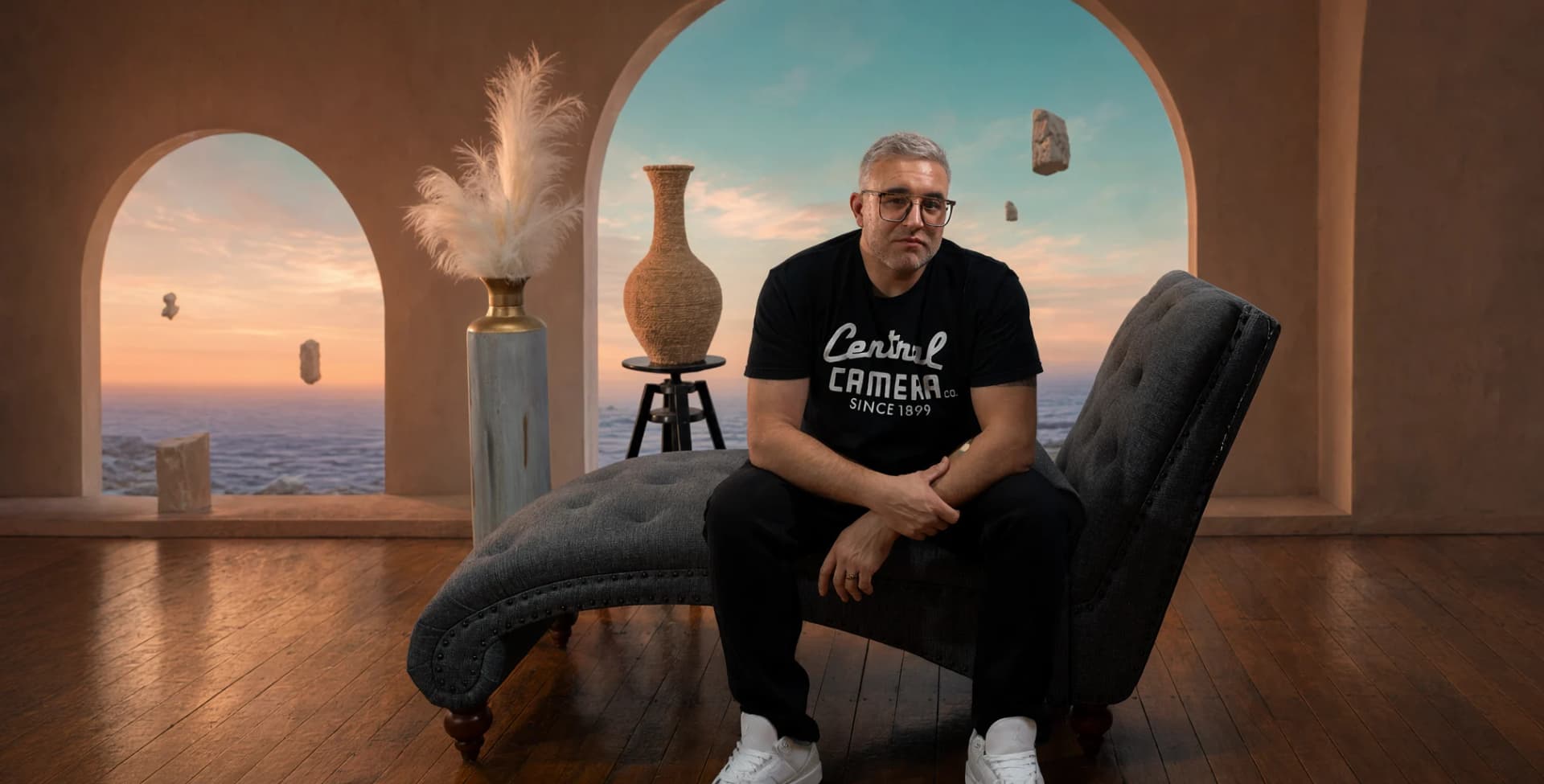
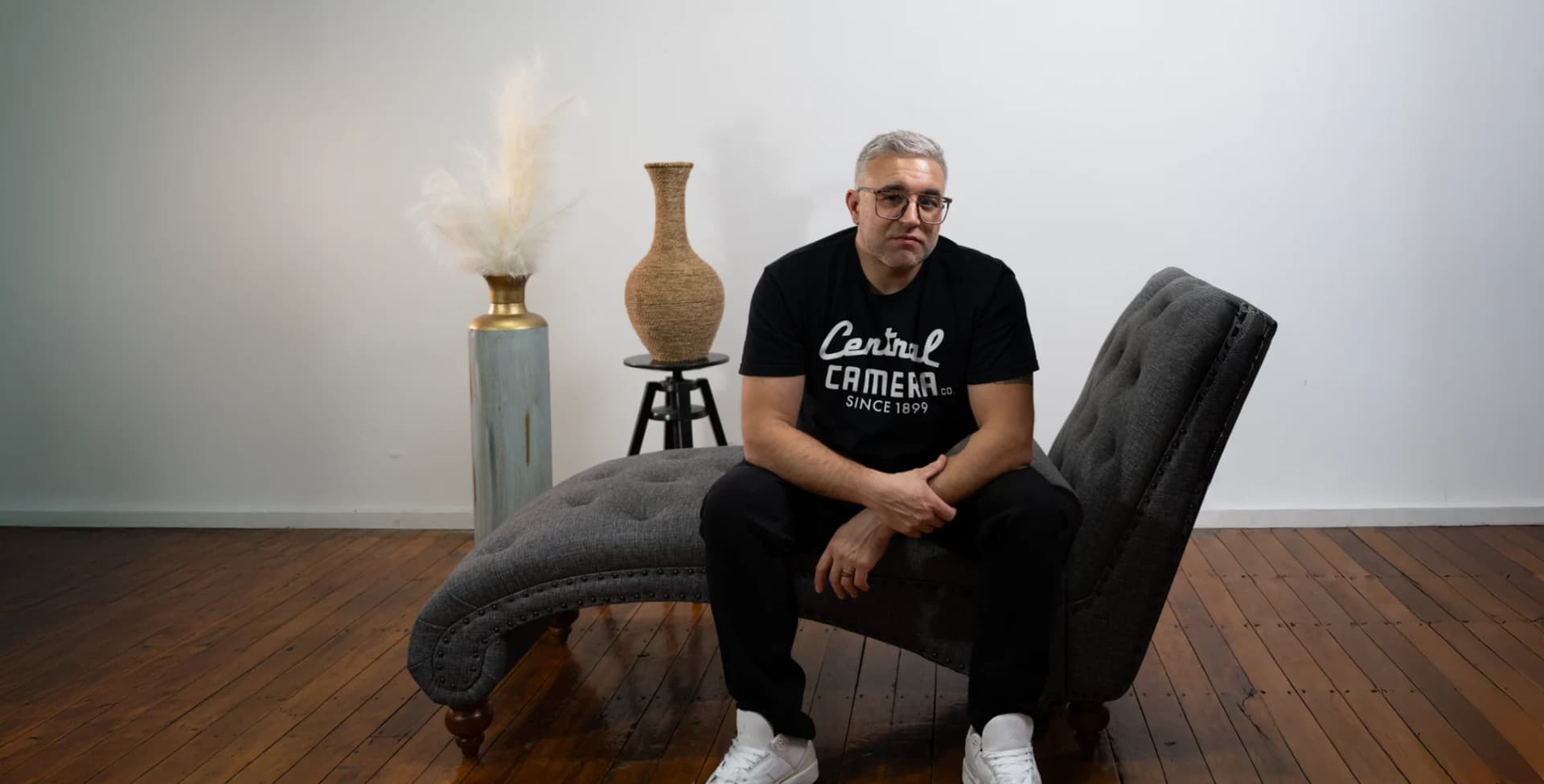
Source
Edited
Source
Edited
Each instruction names what must change and what must stay. This is the tin edit, with the wordmark supplied as image 2:
"Edit image 1, the vintage sunburst metal tin. Use image 2 as the logo design reference. Transfer the exact black MELLUZZO wordmark from image 2 into the center of the cream rectangular label on the lid, following the lid's perspective. Use the wordmark only, without the red rectangular background or the small subtitle and year. Preserve the recognizable original letter shapes and the spelling MELLUZZO. Make the logo look like authentic aged black ink printed directly onto the cream enamel, with subtle fine abrasion consistent with the surrounding vintage paint. Keep the tin's shape, camera viewpoint, red orange cream and teal sunburst artwork, stars, lid geometry and dark fabric setting. Improve fine metal detail, rolled edges, believable chipped paint, tiny scratches, restrained patina and fabric texture. Refine the warm studio key light and soft reflected highlights to emphasize the tin's volume without over-polishing it. Premium photorealistic vintage product photography. No new decorative text."
— Tin edit instruction, seed 411402, wordmark supplied as image 2
Source
Edited

Source
Edited
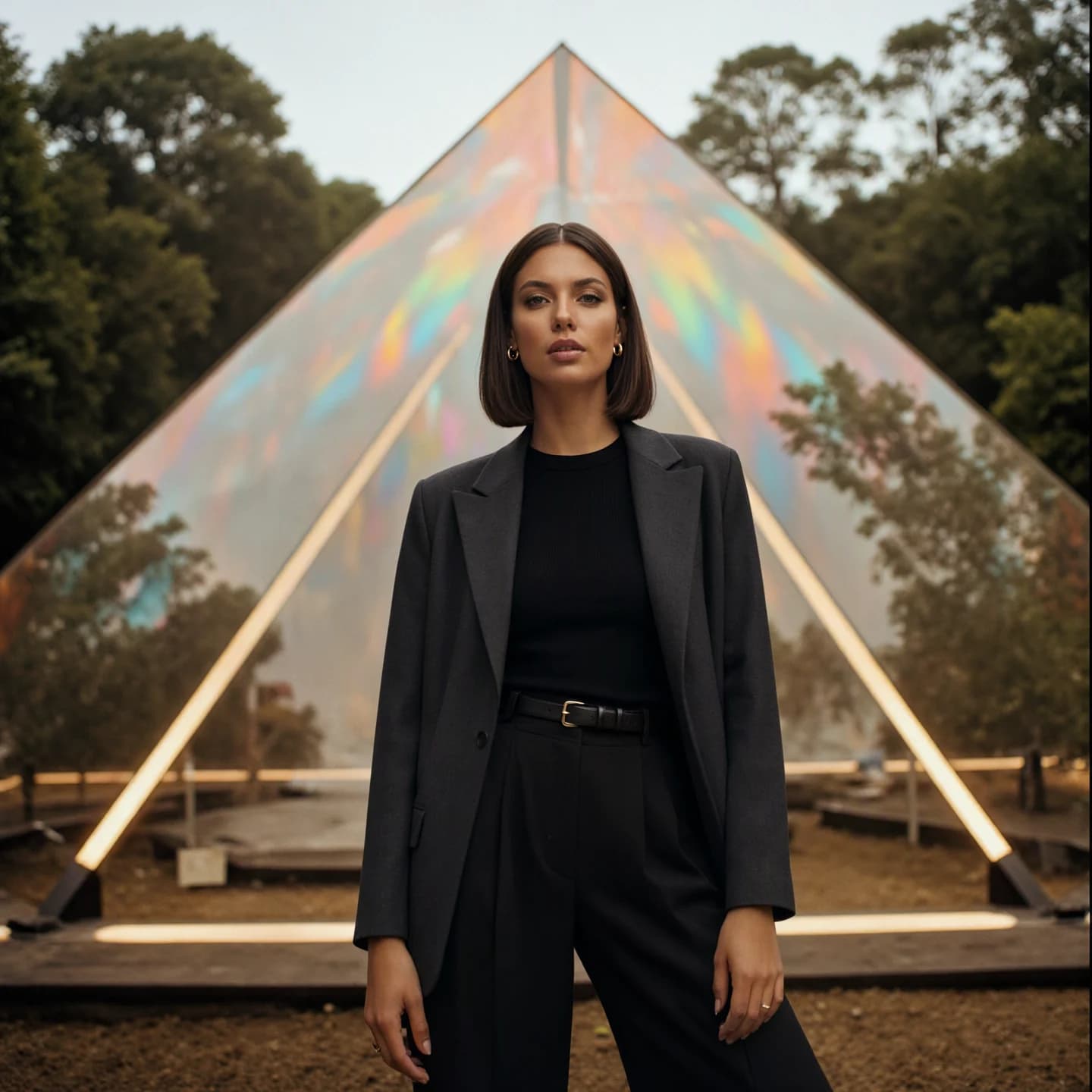
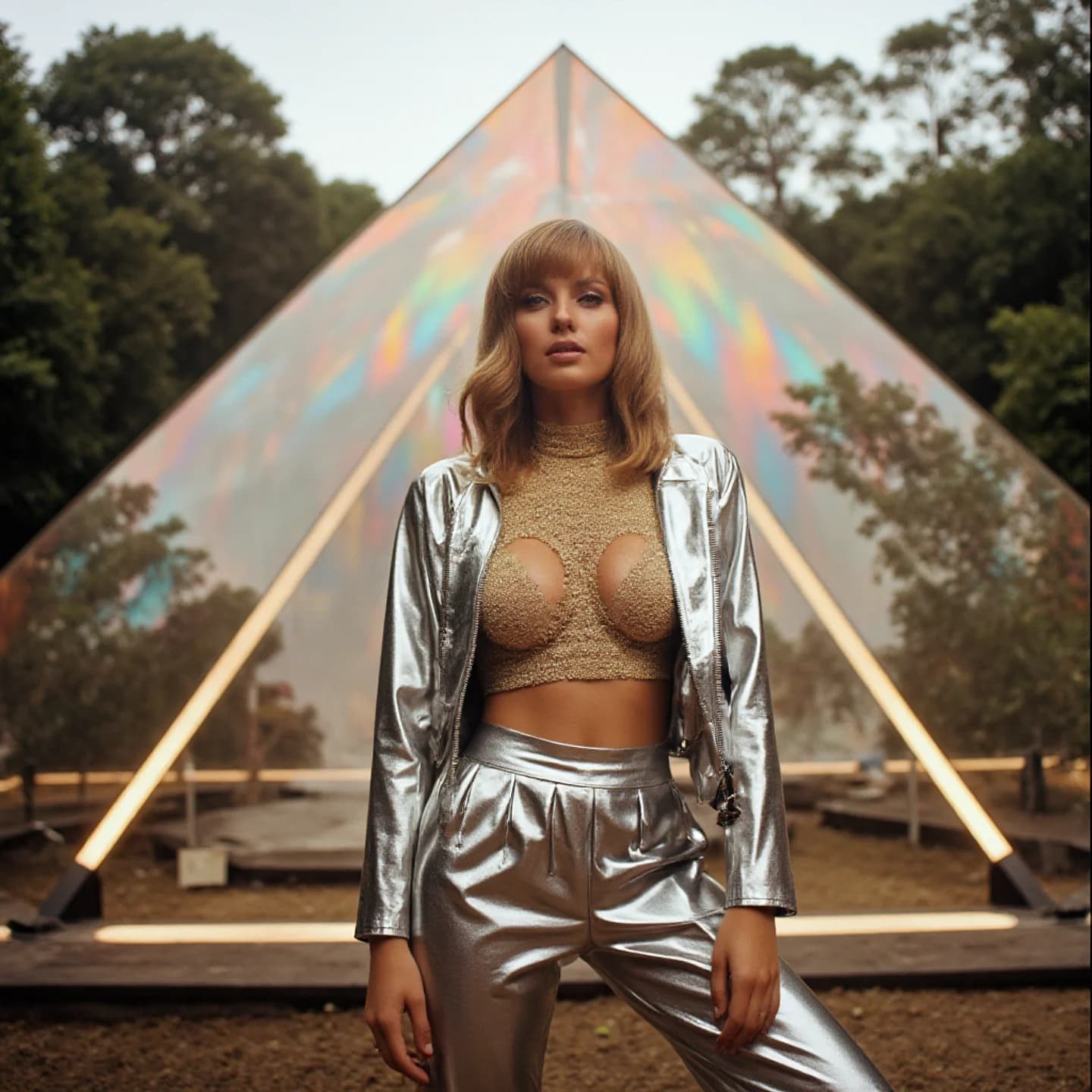
Source
Edited
Install
Close ComfyUI and place the repository in ComfyUI/custom_nodes/luminaire-edit-studio/. Keep only one installed copy
Install the external node packs and the model files listed below
Restart ComfyUI and refresh its browser tab
Load workflow_packs/qwen21/QWEN_IMAGE_21_STUDIO.json, then select your installed models and input images
Leave Quality selected for the first render, check the layout with the preview button, then queue the edit
Seven external node packs supply parts of the canvas: ComfyUI-KJNodes (the Studio Bus), ComfyUI-AusBoss (workflow switches, image folder, crop and stitch), rgthree-comfy (Power Lora Loader and Image Comparer), ComfyUI_essentials, the Fantastic MiniMax H3 PromptBuilder (its media loader nodes only, with no MiniMax weights needed), ComfyUI-PixelDriftFix for optional RGB alignment, and comfyui_controlnet_aux for optional structural guidance.
On Windows Portable, an optional script installs any of those seven that are missing, and a second one installs the workspace and the selected workflow while refusing to create a duplicate install:
Windows Portable helper (PowerShell)
1
powershell -ExecutionPolicy Bypass -File .\INSTALL_STUDIO.ps1 -ComfyRoot "D:\ComfyUI_windows_portable\ComfyUI" -Pack qwen21
Tested Hardware
Everything was checked on one machine: ComfyUI 0.42.0 with frontend 1.57.1, Python 3.13.11, Torch 2.10.0+cu130, an RTX 4090 with 24 GB, and 64 GB of system RAM. There is no minimum-version or lower-memory guarantee. The published attention timings were measured on v1.3.2. Version 1.4.0 reorganized the code, names and packaging, and it has no benchmark of its own.
Model licenses
Luminaire's code, documentation and workflow contributions are GPL-3.0-only. That does not cover the models. Qwen Image 2.1's published agreement permits research and evaluation use, and Viggle Turbo identifies the same research-only terms, so commercial use needs a separate grant from the model publisher. Check the license for every encoder, VAE, adapter and upscaler you select. No model weights are distributed with the project.
Current limits
Qwen Image 2.1 is the only generation engine. Draft mode's masked-edit, outpaint and RGBA routes have not each had independent GPU validation. The prompt-enhancer checkpoints weren't installed when the enhancer text was rewritten, so no new quality comparison was run. Outputs are 8-bit PNG; this is not an EXR, HDR or color-managed finishing system. No attention backend promises identical pixels, or universal fidelity for faces, text or every edit instruction.
Credits and Sources
Design & Development
Paul Melluzzo
Base model
Qwen Image 2.1
Six-step Draft checkpoint
Viggle Turbo v0.2.1
Related Experiments
Interested in this experiment?